
RAID-5 Setup Tips: How to Avoid the Data Recovery Lab

Table Of Contents
show
By Brian Gill, CEO Gillware Inc. Data Recovery
Having run one of the world’s most successful data recovery labs for over a decade now, I’ve seen thousands of RAID 5 data loss situations that probably could have been avoided by following these simple guidelines. This is not intended to be a comprehensive explanation of what RAID 5 is, but rather tips for somewhat experienced IT folks when setting one up. A RAID 5 setup takes N hard drives, groups them together with physical hardware or software into one big storage array. The total array will have N-1 drives worth of total capacity, because it is sacrificing one drives worth of total capacity and using that amount for redundancy. An example RAID 5 setup would be 3x3TB drives for 6TB of total capacity. Any single drive can fail and the array will still be able to read and write data in a “degraded” state. At that point you’re supposed to notice a drive is dead and replace the drive with a new one and then allow the array to “rebuild” and restore redundancy. If two drives in the array die the data will be non-accessible and likely gone forever without serious expertise.
For a more detailed explanation of RAID 5 and how it works:
https://www.gillware.com/raid-data-recovery/raid-5-data-recovery/
Use a Variety of Drive Manufacturers

Use drives from various manufacturers. This is getting harder as the hard drive manufacturers continue to consolidate. If you can’t get different manufacturers, at the very least pick drives with significantly different manufacturing dates, I’d recommend at least a month variance. Drives in a RAID live almost identical lives as far as number of shutdowns, startups, runtime, data read and written, environment, etc. If they are the same model and were manufactured the same day they may have very similar life-spans or similar manufacturing defects, or similar reactions to power-surges/sudden loss of power/environmental events. RAID 5 gives you the ability to have one drive worth of redundancy, so we definitely don’t want them dying the same day or same week. Using drives that are similar capacity/speed but different make/model will help avoid some dual drive death situations.
Write Down the RAID Configuration Information When You Set It Up
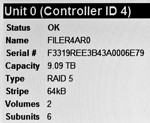
Most RAID cards can be setup in a variety of different ways. You’d be surprised how many calls we get from IT folks that send us a box of healthy drives simply because the RAID card exploded. All the configuration lived exclusively on the RAID card and they have absolutely no memory of the setup. Are you running RAID 5, RAID 6, RAID 1? What’s the stripe size on your RAID, 64KB, 128KB, 1 sector? What’s the rotation? Are there multiple volume groups or just one? If there’s more than one, which drives are in which group? Offsets? Which drive is the hot-spare? What firmware version is your RAID card or software RAID running?
Make Sure the RAID Card Stores the RAID Configuration on the Card and on the Drives.
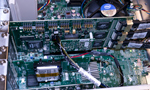
If this is the case and our RAID card dies, there’s a decent chance that simply ordering another one with the same firmware and plugging the drives back in will allow the array to remount. This is because each drive has some meta-information stored somewhere (usually the first few sectors at the front or back of the drive) that explain its place in the universe. The order in the array, the stripe size, the data offset, what physical group it’s in, etc. actually lives on the drives, allowing the new card to re-detect the array settings.
Setup Notifications

While I’ve never seen an official study, I’d estimate more than half of the small businesses out there running RAID 5 have not properly setup the RAID controller notifications. When a drive is taken offline by the RAID controller you absolutely must have it email you or page/text you so you can promptly replace the failed drive and perform the necessary rebuild to restore redundancy. I’d estimate nearly 90% of small businesses/consumers running NAS (Network Attached Storage) RAID 5 units haven’t setup any notification. When a drive fails and goes offline, the storage array will continue to function (the whole point of RAID 5) and will “emulate” data read from and written to the dead drive using parity calculations on all the other drives. You might get lucky and notice a 20-30% slow-down in data access times, and think “Gee my NAS is running a little slow, I wonder if I lost a drive?”, but honestly most users would never notice this. Someone might wander by the unit and notice a little crimson LED on a drive instead of a green one but chances are they won’t know what it means or say anything.
So, if you’re running one of those NAS units in your small business, go grab the manual, connect to it via the little “website” it hosts, and configure the notifications. If you’re running a small traditional server in your office/home, check the RAID BIOS settings next time you boot and peek at the configurations tab. Test the notifications (it should have a simple button to test it) to make sure you get that page/email .I’d recommend emailing an email group and not a single person, and make sure the message isn’t eaten by the junk mail filtering.
Use “Enterprise” Class Drives
While the guts of most drives are very similar, almost every manufacturer has distinctly different firmware on their enterprise series drives when compared to consumer class drives. For example, a consumer class drive may be setup to do “offline” scans; it is scanning for sector-level platter defects while the drive is not currently in use. A consumer class drive may actually spin-down the motor and go to sleep to save power when not in use. In a single drive consumer system these may be optimal behavior. However, when the RAID controller attempts to “talk” to a drive in these conditions, there may be an unacceptable latency in its response . The RAID controller may be configured to take a drive offline after a certain timeout and now you’re running degraded even though the offline drive is actually healthy. If 2 or more drives meet this condition you’re dead in the water. Enterprise class drives are going to alter their behavior to meet the performance/latency requirements of the average RAID controller. Enterprise class drives also go through a much more comprehensive quality assurance process and use higher quality components during manufacturing. As such, enterprise drives are typically rated for much longer lives in general. Enterprise series drives of course will cost more and can be harder to source (you aren’t going to find them at most local consumer electronics stores) but the extra money and time to source the appropriate equipment is money well spent.
6 Drives Max
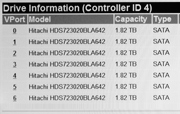
I’d recommend a maximum of 6 drives in a RAID 5. I’ve seen setups where folks have used significantly more than 10 but this is to be avoided. Simple math says the more drives you run the higher the probability of a double-failure which is what we’re obviously always trying to avoid. If you’re building a RAID for huge capacity needs, I’d highly recommend running RAID 6 and probably having at least one hot-spare.
Beware the Convenience of the RAID 5 NAS Device.
As I mentioned previously RAID 5 NAS devices are typically not configured to notify anyone when they have a drive failure. This is because people remove them from the box in the networking closet, plug them in, switch them on, and everyone in the office magically sees a new logical volume on the local network. Then the victorious installer pats themselves on the back and gets on with their day, sometimes discarding the box and manual in the trash.
As convenient as these devices are, I’d say they are roughly 3-5 times more failure prone than a legitimate RAID 5 in a big boy server. Most of these NAS units are shipped with whatever drives were cheapest that morning, regardless of manufacturer. Usually the drives will be one serial number apart, built within seconds of each other. They certainly aren’t going to put expensive enterprise class drives in popular consumer NAS devices; they are competing primarily on price. They are portable and easily stolen. They don’t have anywhere near the independent fan power as a real server. They probably live in a closet and not in a server room. One more important failure point compared to a big boy server: A NAS device must boot its own proprietary device operating system (again usually one-off Linux) in order to mount the data up to the network. On a big boy server you’ll be running a real version of Linux or Windows that you have the disks for and understand how to troubleshoot. When a NAS takes a dirt nap it may allow you to attempt to “repair” the operating system, “flash the firmware”, but these options may or may not involve the annihilation of all your data, scary stuff.
When a NAS does take a dirt nap, there’s a very high probability you’ll be sending it to Gillware or one of our competitors for data recovery if you didn’t have a solid backup. All data recovery software needs access to the logical array containing the data in order to scan for file signatures/iNodes/directory structure, etc. When a RAID 5 NAS is a brick, it’s truly a brick; there’s nothing to mount. Even if you can figure out how to properly access the data volume, you may not like what you find with data recovery software. These devices typically run a proprietary flavor of Linux, sometimes with a fairly standard Linux file-system like XFS, but sometimes the file system will be fully proprietary (there isn’t any data recovery software for proprietary file systems, useless the person who wrote the file system was kind enough to write one or publish the spec). We’ve seen some NAS device manufacturers that use standard file systems but actually encrypt the data (whether or not the consumer asked for it). We’ve seen others that reverse the bit order on a sector level and we had to write software to untwist it. Essentially, as long as a NAS mounts a network file system up on the network they can and will do whatever they want under the covers. It typically will not explain how it operates under the covers on their website or in the manual as the manufacturers are trying to protect their intellectual property.
One of the un-anticipated side-effects of how easy a NAS is to get up and running, is that most consumers don’t educate themselves on how to use the administrative consoles. If you don’t properly set up event notification and put some thought into the security settings, you may be regretting it in the future.
Auto-Rebuild Auto-Force Awareness
Some RAID cards will have a configuration setting for enabling automatic rebuilds. Some may have settings on whether or not it is ever allowed to force a drive that has fallen out of the array back online if it meets a certain health standard. It is very important to read the documentation for your card and understand how it’s going to behave if you are going to be enabling any of these types of automated features.
We’ve seen multiple instances over the years where the card behaved in a manner inconsistent with what you’d expect. For instance, upon failed drive replacement the card would rescan the entire array, force a stale drive online, and start rebuilding from that stale drive, destroying all the data since that stale epoch. We’ve seen cases where the array would notice a drive is offline, automatically force it online and rebuild to it. If a drive is flaky and falling offline, it’s best to actually replace it, not just jam it back into the array and hope it holds up this time. We’ve also seen rare cases where a technician replaced a failed drive with a new blank drive, and the array kicked off a rebuild from the array with the blank drive included to another drive in the set, essentially blowing away all the data.
I won’t go as far as to say you should never have automatic rebuild enabled, especially if your array has a hot-spare you actually want it to engage the spare and rebuild to it automatically in the situation where a member of the set is taken out of the array because it is unhealthy. I would never personally enable these features on any array without a hot-spare that I was responsible for. If your game-plan is to replace multiple drives in a RAID 6 or a RAID 5 with a hot-spare, you wouldn’t want the rebuild process to start until you’ve replaced both of them.
In my opinion, the operator replacing the failed or flaky drive(s) should be making the decision on when to start that rebuild process, and should have the opportunity to verify that the rebuild target(s) are correct. Having said that, understanding what your card is capable of and what features you decide to enable is the critical thing here.
A RAID 5 is Not a Backup
Many an IT professional has become unemployed when a storage array configuration that should have been routine went sideways on them. These are not always related to RAID; operating system patches, virtualization of a server, database or server upgrades, etc. all may have some associated risks. Always make sure to verify the most critical data has a recent and functional backup before doing any configuration modifications to an important storage array. A RAID 5, or any RAID for that matter, is still subject to numerous failures that will lead to data loss. A RAID 5 will not protect your data from fires ,floods ,thefts, virus attacks ,human error, malicious employee behavior or multiple drive failure. It only protects you from data loss from a single-hard drive failure when a technician is paying attention and can replace it promptly. Running a RAID 5, coupled with a cloud-backup for critical data, is a very solid and cost-effective solution for most small businesses. Shameless plug: Gillware remote backup is our solution and you can quickly and easily configure it to automatically encrypt and transmit your critical data up to your slice of our cloud . For a small fee we’ll actually continuously monitor the account to make sure all critical data is being transmitted on a routine basis and that all critical data has been properly configured to get moved up to the cloud.
Have Replacement Drives On-hand
When a drive dies in a RAID 5, it can sometimes be a struggle to order similar capacity/performance drives to replace it. If a second drive fails while you are awaiting that shipment you could be in a world of hurt. It’s a good idea to order a spare drive when you are setting up the RAID in the first place. Even if you are setting up a hot-spare you may want to order another just so you have a cold-spare lying around when you need it.
Ensure You Have a Complete Backup before Adding Storage or Flashing Firmware
A lot of data loss can happen when doing “routine” maintenance on an array. If the meta-information about the array (drive order/rotation ,stripe-size, offline drives, hot-spares, physical volume grouping) is lost during a flashy ou’ll be dead in the water. Perhaps the array is full and you want to add more drives and a new volume group. Perhaps there’s new firmware for your device that you think will add features or increase performance. It’s always a good idea to ensure your backups are current and 100% complete before doing this type of maintenance. Many an IT professional has been fired for doing routine maintenance without verification of the backup first.
Summary
A properly setup and continuously monitored RAID 5 array will protect you from single-drive failure costing you all your data. If improperly setup or not monitored at all, RAID 5 can give you a false sense of security and you’ll probably be sending the array to us for data recovery someday. A RAID-5 in and of itself is not a backup. A solo RAID 5 array in a single physical location will never protect you from fires, floods, thefts, power surges, malicious employees, multiple drive failures, human error or virus attacks.
Connect with Gillware CEO Brian Gill on LinkedIn here and join Gillware on facebook here.
